
What Goes on a Professional Invoice?
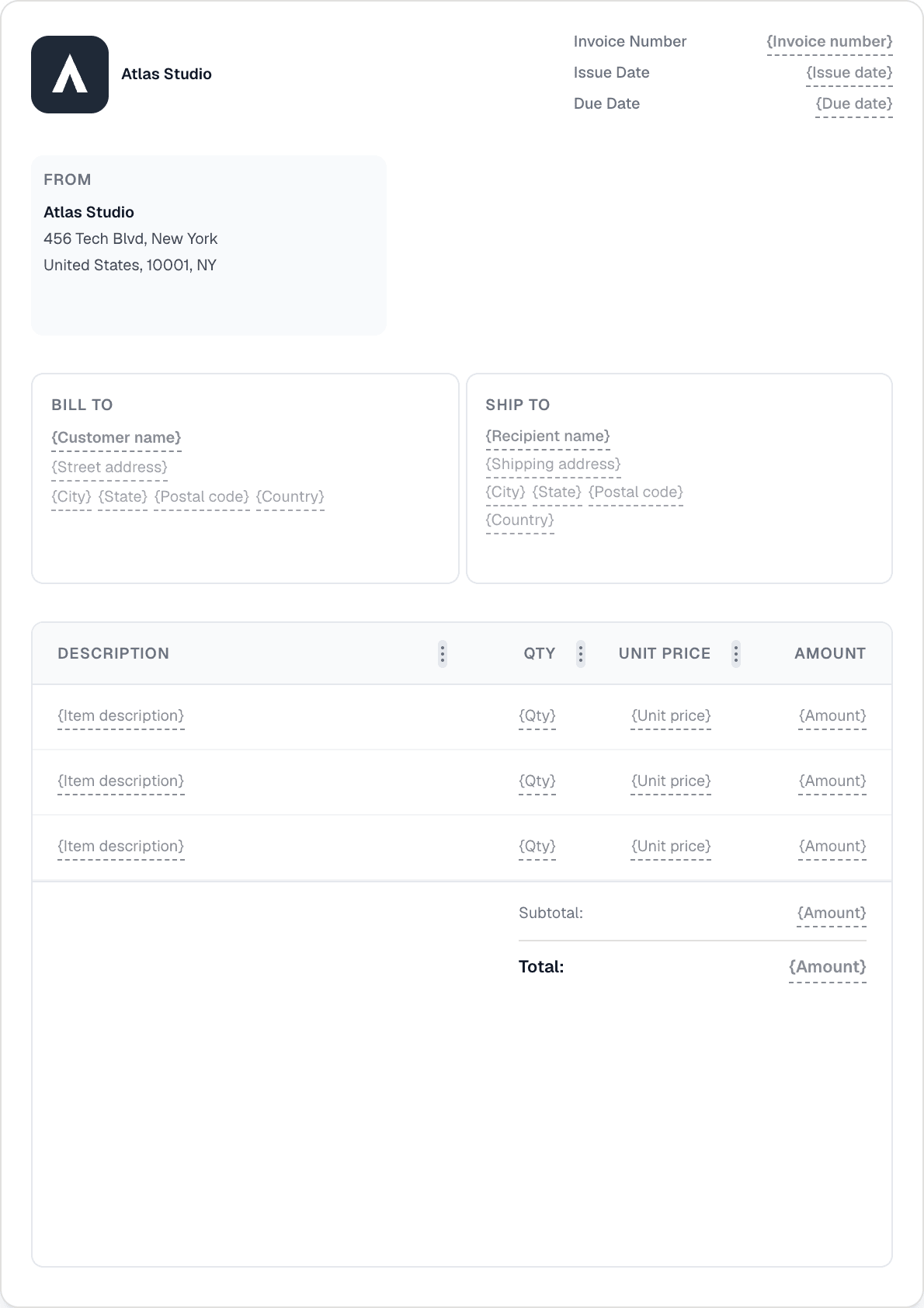
A well-formed invoice contains six core elements: your business name, address, and registration or VAT number; the client's name and billing address; a unique invoice number and the issue date; a due date or payment terms (such as Net 30); an itemised list of goods or services with unit prices, quantities, and any applicable taxes; and the total amount due in the agreed currency.
Optional but frequently required fields include a purchase order (PO) number if the client's procurement team issued one, bank transfer details or a payment link, a signature block, and legal notes or payment-penalty clauses. In the EU, a VAT invoice must also show the supplier's VAT identification number, the customer's VAT number for B2B cross-border transactions, and the applicable tax rate per line.
Getting this structure right from the first invoice matters: errors in tax amounts or missing mandatory fields can delay payment, trigger queries from client finance teams, or result in rejected VAT reclaim submissions.